


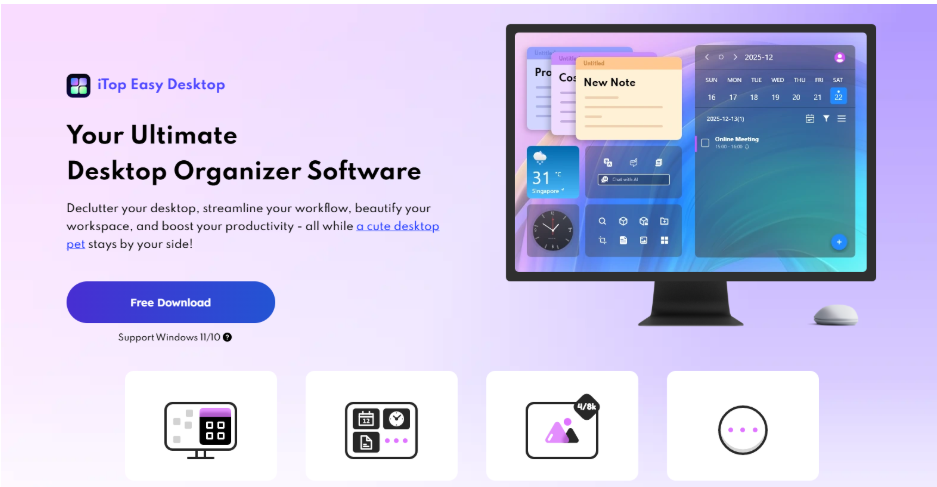
It is hard to stay focused when your desktop looks like a storage room. Icons sit on top of screenshots, downloads mix with documents — and every time you minimize a window, you are reminded of the mess underneath. Even if you ignore it, your brain does not. It keeps processing that clutter in the background.
iTop Easy Desktop can help you turn that noisy surface into a calm, distraction‑free workspace. It cleans up icons, adds gentle productivity tools, and lets you design a visual environment that supports focus instead of fighting it.
What is the iTop Easy desktop?
iTop Easy Desktop is a desktop organizer software for Windows. V4 supports Windows 11 and 10, while older systems such as Windows 8.1, 8, and 7 can still use V3.2. The idea is simple: declutter your desktop, streamline your workflow, beautify your workspace, and boost productivity in one package.
The software runs locally on your PC, keeps your files on your machine, and is built to be lightweight, so it uses minimal system resources. You can revert your desktop to its original state with a single click if you do not like the changes. It also fully supports multiple monitors, so boxes and widgets can stretch across all your screens.
Product Features That Help You Cut Distractions
Clean layout with 1‑Click Auto‑Organization and boxes

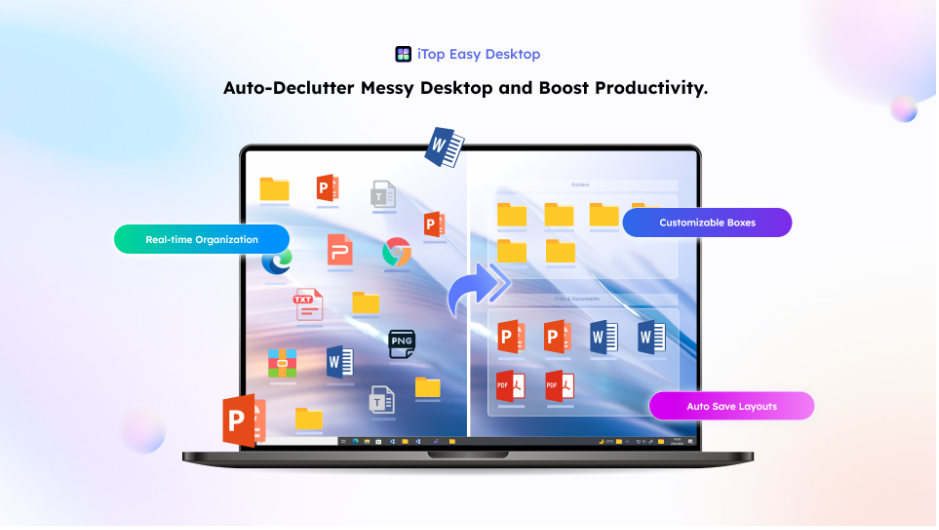
A focused workspace starts with a clear surface. With 1‑Click Auto‑Organization, iTop Easy Desktop sorts all your icons into intelligent, customizable groups such as Documents, Images, Applications, and Folders. This removes the “icon soup” look in seconds.
From there, Personalized Box Organization lets you create your own Boxes like “Urgent,” “Client,” “Study,” or separate areas for work, gaming, and personal life. Instead of a random grid, you get small sections that tell you exactly where to look.
A built‑in search bar helps you find any file or folder by typing its name instead of scanning the screen, which cuts a lot of micro‑distractions when you are already deep into a task.
Smart Workflow Assistant to keep the day visible

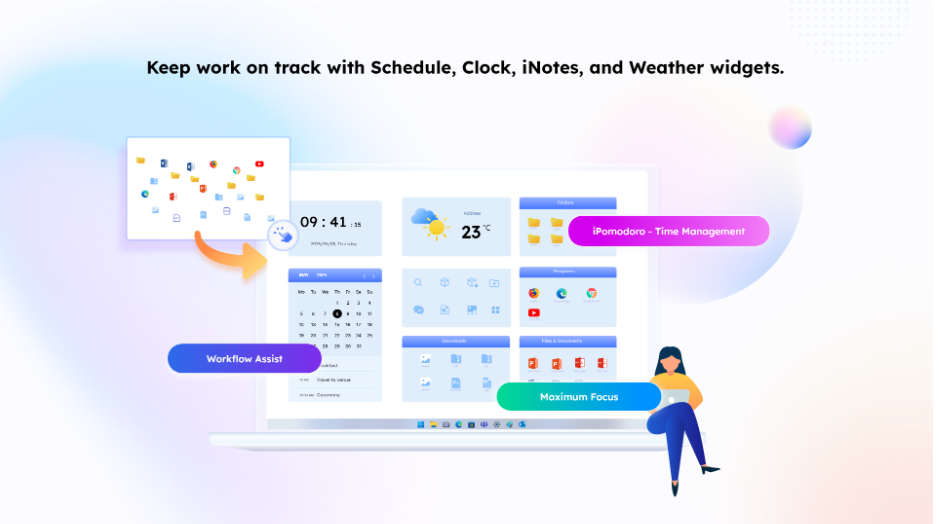
Distraction often comes from uncertainty about what to do next. The Smart Workflow Assistant inside iTop Easy Desktop keeps your day in front of you without extra noise.
- iNotes lets you jot down quick reminders and ideas so they do not live in your head.
- Schedule tracks tasks and deadlines, and can sync with Google Calendar and Outlook Calendar, so your calendar lives on the desktop instead of hiding in a browser tab.
- Clock to Stay on Time, iPomodoro, and Weather Forecast round out the picture. The clock widget keeps time visible, iPomodoro breaks the day into focused intervals and short breaks, and Weather Forecast saves you from checking your phone or browser every time you wonder about the day.
- Quick Screenshot lets you capture any area of the screen, with scrolling screenshots for long pages, which stops you from juggling extra clip tools.
Instead of multiple apps fighting for your attention, you have quiet, always‑ready helpers on the desktop itself.
Visual design that feels calm, not busy
A distraction‑free workspace is also about how the screen feels. iTop Easy Desktop gives you control over the entire look of Windows:
- Live Wallpapers and static wallpapers, including high‑definition options and support for 4K and 8K video backgrounds.

- Themed Packs that combine wallpaper, icons, and other elements.
- Start Menus that can switch from classic to newer styles in one click.
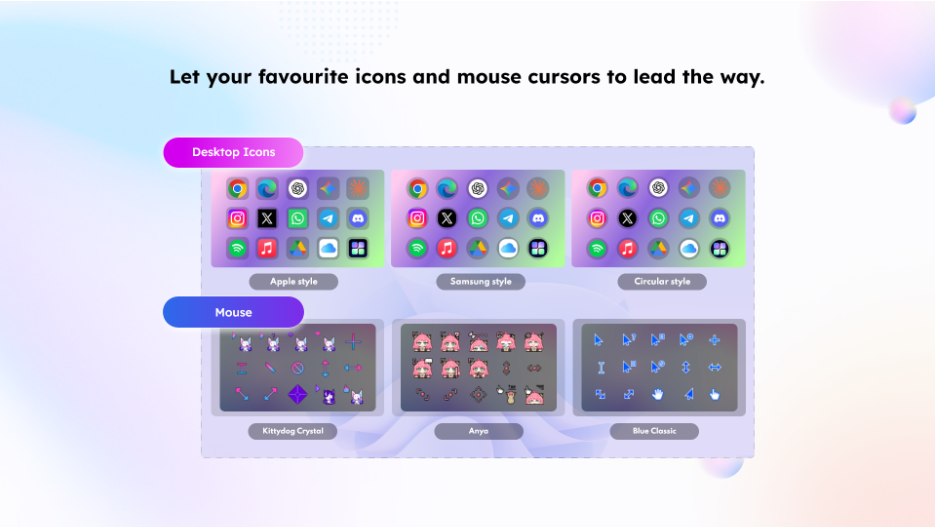
- Desktop Icons that can be refreshed to Apple or Samsung style to match your taste.
- Mouse cursor themes so that even the pointer fits your overall theme.
You can choose something calm and low‑contrast for long work sessions, so the desktop fades into the background instead of shouting for attention every time you minimize a window.
Tools that remove visual overload
The feature list includes several small functions that are perfect for staying focused:
- Double‑Click Hide Everything lets you instantly hide all boxes and clear the screen, which is ideal when you are about to share your screen or when you just need a blank canvas for a moment.
- Auto Save Layouts acts like a snapshot system for your desktop. Once you find a layout that feels right, you can bring it back anytime, even after experimenting.
- Discover New Files highlights recent additions with a red spot, so you can quickly see what needs to be filed without combing through all sections.
Together, these features make sure you see only what matters right now and that your layout does not slowly fall apart.
Private spaces and fast access without clutter
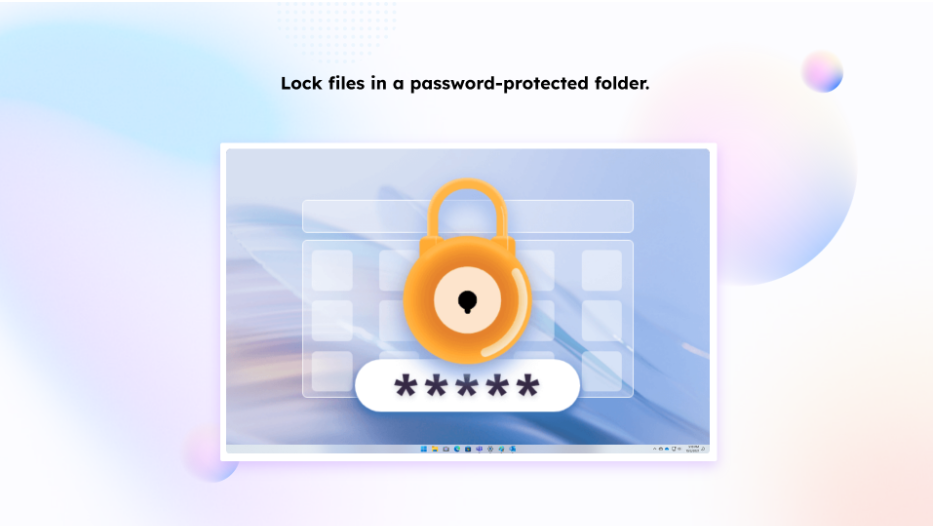
A distraction‑free workspace is not just about what you see. It is also about what you keep out of sight.
Lock Files in Private Box lets you store important photos, videos, and documents in a password‑protected area, away from the main desktop. Easy Access with Folder Portal brings the contents of any folder onto the desktop like a mini File Explorer, so you do not have to keep Explorer windows open everywhere.
A bit of personality without extra noise
For users who like a friend on screen, PawPal is a desktop pet with different modes such as Normal, Quiet, Care For Me, Chat with Me, My Dashboard, and Hide Me. You can keep it subtle in quieter modes so it does not pull you away from work, or bring it forward when you want the workspace to feel more relaxed.
How to Use iTop Easy Desktop for Focus
To turn your desktop into a distraction‑free zone, you can follow a simple setup:
- Download and install iTop Easy desktop from the official site, then run it on your Windows 11 or 10 PC.

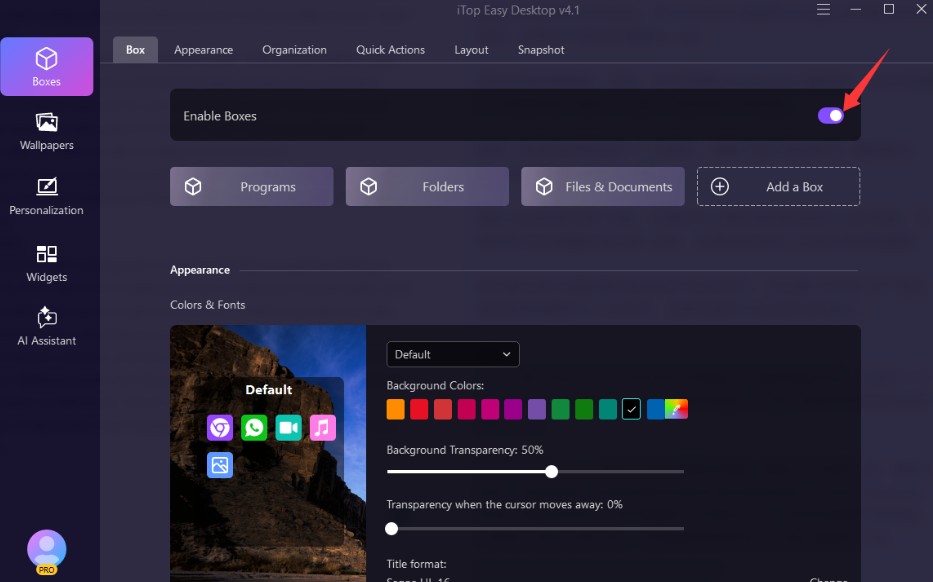
- Use Boxes for the way you work: Today, Deep Work, Admin, Personal, Screenshots, or whatever matches your routine, and move files into them.
- Turn on iNotes and Schedule, connect Schedule to Google Calendar or Outlook Calendar, and keep them visible on one side of the desktop.
- Add Quick Screenshot, Clock, Weather Forecast, and iPomodoro, placing them where they are useful but not in the middle of your main work area.
- Choose a calm wallpaper and a theme pack, adjust Start Menu style, icons, and cursor until the overall look feels simple and consistent.
- Enable Auto Save Layouts so you can always return to this focused arrangement, and get used to Double‑Click Hide Everything for instant cleanup before calls or deep work sessions.
- Move distracting or sensitive items into Private Box, and set up Folder Portal for the few folders you need all the time so you can close extra windows.
Conclusion
A distraction-free workspace is not something you get by hiding a few icons. It comes from a desktop that is organized, predictable, and visually calm, with just enough information visible to guide your day.
By combining auto declutter boxes, smart workflow tools, quiet widgets, layout controls, private storage, and a flexible visual system, iTop Easy desktop gives you the pieces you need to build that kind of environment on Windows. When your screen stops shouting for attention, it becomes much easier to focus on the work that actually matters.

Adzofy – SEO Outreach & Guest Posting Agency
High-quality guest posts on authority sites
Building powerful and natural backlinks
WhatsApp: +92 329 6156911